
How to Set Up QR Code Construction Site Sign-In
A step-by-step walkthrough of setting up worker, visitor and delivery sign-in for a construction site with FreeQR — inductions, pre-starts, SWMS acknowledgement and a live onsite register included.
Most construction sites still start the day with a clipboard, a pen that's gone missing, and a sign-in sheet nobody can read by the second week. It works, in the sense that something gets written down. It doesn't work if you ever actually need that information — to confirm who was onsite on a given day, to prove a worker completed an induction, or to account for everyone during an emergency.
The usual alternative is a full construction management platform, and for a large builder running dozens of sites with permits, incidents and procurement to track, that's often the right call. But a lot of sites don't need any of that. What they actually need is simpler: know who's arriving, get them through an induction or acknowledgement if one's required, record that they're onsite, know who's currently there, keep a usable record, and sign people out again at the end of the day.
FreeQR Construction Site Sign-In handles that with a QR code at the entrance and a normal phone browser — no app for the worker to install, and no new platform for the site manager to learn beyond a dashboard they can set up in a few minutes.
What is QR construction site sign-in?
The idea is straightforward. You print a QR code and put it at the gate. A worker, contractor or visitor scans it with their phone's camera — not an app, just the camera, the same way most people already scan restaurant menus. They choose who they are, fill in the details the site requires, complete an induction or pre-start if one's been set up, and sign in. From that point, the site manager can see them on a live list of who's currently onsite. When they leave, they scan the same QR again and sign out.
That's the whole mechanism. Everything else — inductions, credentials, approvals, reports — sits on top of it.
Who it's for
This suits builders and subcontractors running their own sites, smaller principal contractors, fitout and maintenance projects, commercial and industrial works, and facilities teams managing contractors on an otherwise occupied site. It's built for sites where the core requirement is sign-in, induction and attendance — not a replacement for a full enterprise HSEQ system covering permits, plant, incidents and procurement. If that's what you need, a broader platform is the right tool. If it isn't, read on.
What FreeQR Construction Site Sign-In actually includes
Everything below is live, working functionality, not a roadmap:
- Worker, contractor, visitor and delivery sign-in, each with its own configurable form
- Optional GPS verification — off, capture-only, or required within a set radius of the site
- A form builder covering site inductions, SWMS acknowledgement, pre-starts, toolbox talks and custom forms, each independently versioned
- Worker credential records (White Card, High Risk Work Licence, EWP, Working at Heights, First Aid, electrical licence, trade qualifications or a custom type) with configurable expiry warnings
- Manager approval on any form, with reject-and-resubmit if something needs fixing
- A live, real-time “who's on site” register
- One-tap emergency roll call
- Site manager and viewer access for people who need to help run the site without getting your billing or your other sites
- A full audit trail of manual changes, approvals and form publishes
- A printable A4 site QR sign
- CSV export, plus PDF records for attendance registers, emergency roll calls and credential summaries
Setting it up, step by step
Create your site
From your FreeQR dashboard, start a new Construction Site Sign-In. You'll land on a short setup form — this is also where you'd set up Visitor Sign-In instead, if that's what you actually need for a reception desk rather than a site gate.
Enter the site details
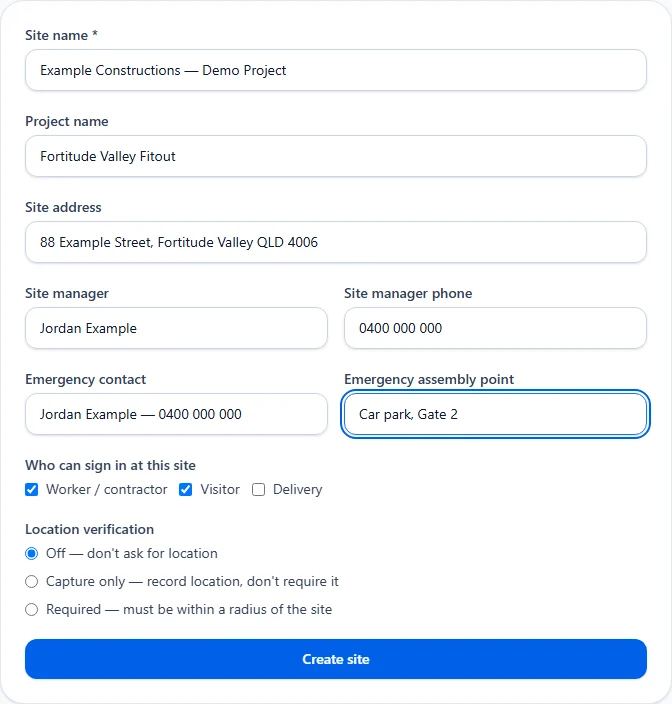
Give the site a name, add the project name and address, and fill in a site manager and emergency contact. None of this is locked in — you can come back and edit it later from the site dashboard.
Choose who's allowed to sign in
Tick Worker/contractor, Visitor and Delivery as needed. A site that only wants worker sign-in can leave the others unticked; a site with regular visitors and deliveries can turn all three on.
Build your induction and any other forms
The site has a simple built-in induction and pre-start text box for the basics — write the content once, publish it, and workers acknowledge it before signing in. For anything more structured, the Forms & SWMS builder on the site dashboard lets you create a proper form from 22 field types: short and long text, multiple choice, mandatory acknowledgement, signature, credential number and expiry, and more. This is where SWMS acknowledgement, toolbox talks and any custom questions live.
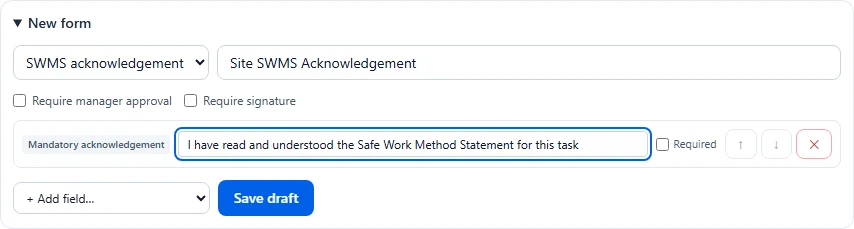
Publishing a form locks it in as a version. If you edit it later, that becomes a new version — the records from everyone who acknowledged the earlier version stay exactly as they were, rather than quietly being rewritten to match whatever's current.
Decide whether approval is required
Each form can be set to auto-approve or to require a manager to review it before it counts as complete. If you turn on manager approval, submissions sit in a pending queue on the dashboard until someone actions them — approve, or reject with a reason and ask for it to be resubmitted.
Configure GPS verification, if you want it
What GPS actually does here
Print the site QR sign
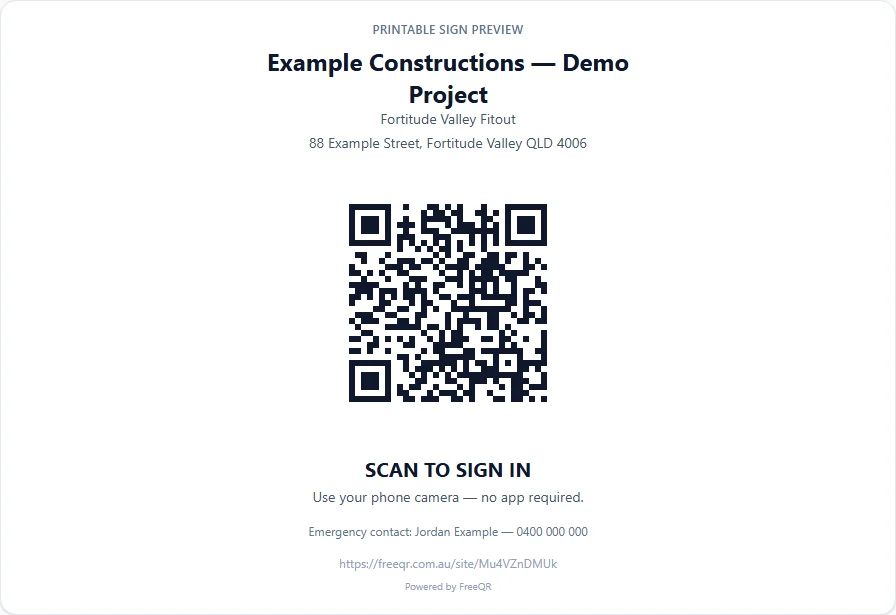
Once the site is created, FreeQR generates a printable A4 sign with your site name, address, emergency contact and the QR code itself — the one pictured at the top of this guide. Print it, laminate it if it's going outdoors, and put it at the gate or site entrance where arriving workers will actually see it.
Test it yourself
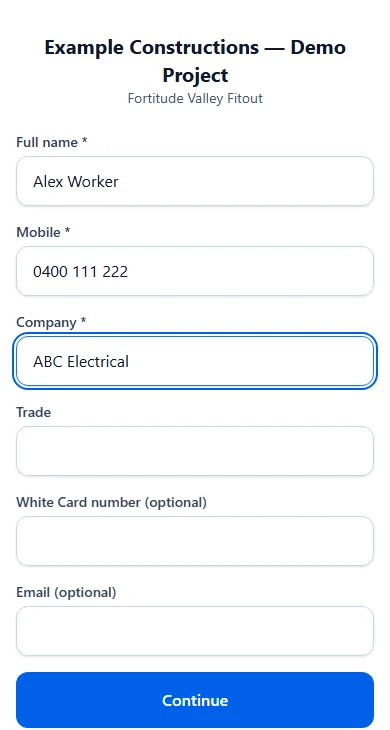
Before relying on it, scan the QR with your own phone the way a worker would. Fill in the worker form — name, mobile and company — and confirm the induction, pre-start and any other steps you've configured appear as expected.
Use the live register
Once people start signing in, the site dashboard shows exactly who's currently onsite, with their company and how long they've been there. You can manually correct or close out a record if someone forgets to sign out — every manual change is logged.

Sign out, run an emergency roll call, and export records
Workers sign themselves out by scanning the same QR again. If you ever need it, one tap starts an emergency roll call — everyone currently onsite is listed as unaccounted for, and you mark each person off as they're found. Attendance, roll-call and credential records are all available as CSV or PDF whenever you need them for your own files.
When a focused sign-in tool makes more sense
Some companies genuinely need a full enterprise construction platform — permits, incidents, plant management, procurement and project workflows all in one system. If that's your situation, a broader platform built for exactly that scope is probably the right investment, and many dedicated construction management platforms charge accordingly for that breadth.
Other companies mainly need sign-in, induction, SWMS acknowledgement, pre-starts, attendance and an emergency register done properly — without adopting a large software suite to get there. For that requirement, a focused product can be easier to roll out across a site, easier for workers to actually use without training, and significantly less expensive than a platform priced for far more than sign-in. FreeQR is built for that second group: a QR-based sign-in system that does the sign-in, induction, compliance-record and attendance part properly, as part of a QR platform you may already be using for other things, without trying to be everything a construction business could possibly need.
Construction Site Sign-In is included with FreeQR Pro (A$12.99/month) — not priced per site, and not a separate subscription from the rest of FreeQR. See current pricing for the full plan comparison.
Frequently asked questions
- Does a worker need to install an app?
- No. The whole sign-in, induction and pre-start flow runs in the phone's normal browser after scanning the QR code. There's nothing to download and nothing to log into.
- Can visitors use the same QR as workers?
- Yes. The same QR code offers Worker, Visitor and Delivery as separate options, each with its own form, if you've enabled them for the site.
- Can FreeQR record site inductions?
- Yes. You can publish a site induction that workers read and acknowledge before signing in, and build more structured induction forms with the form builder if you need specific questions.
- Can we record SWMS acknowledgement?
- Yes. SWMS acknowledgement is its own form type in the form builder — publish it, and workers acknowledge it (with a signature if you require one) as part of signing in.
- Can GPS be required to sign in?
- Yes, optionally. You can require sign-in within a radius of the site, record location without blocking sign-in, or turn location off entirely.
- Does FreeQR continuously track workers' phones?
- No. Location is only read at the exact moment someone taps sign in or sign out. There's no background tracking between those actions — a browser can't reliably do that even if FreeQR wanted to.
- Can I see who is currently onsite?
- Yes. The site dashboard shows a live, real-time list of everyone currently signed in.
- Can I export attendance records?
- Yes. You can export a CSV of attendance for any date range, and download PDF records for a daily attendance register, an emergency roll-call report and a credential summary.
- Can we use it during an evacuation?
- Yes. One tap starts an emergency roll call that lists everyone currently signed in as unaccounted for, and you mark each person off as they're found.
- Can contractors sign in the same way as employees?
- Yes — FreeQR doesn't distinguish between an employee and a subcontractor's worker. Both sign in through the same Worker option and are recorded the same way.