
How to Collect Feedback and Report Issues With a QR Code
A real walkthrough of FreeQR's QR Feedback & Issue Reporting — creating a feedback form, what a person sees when they scan it, and working through submissions in your dashboard.
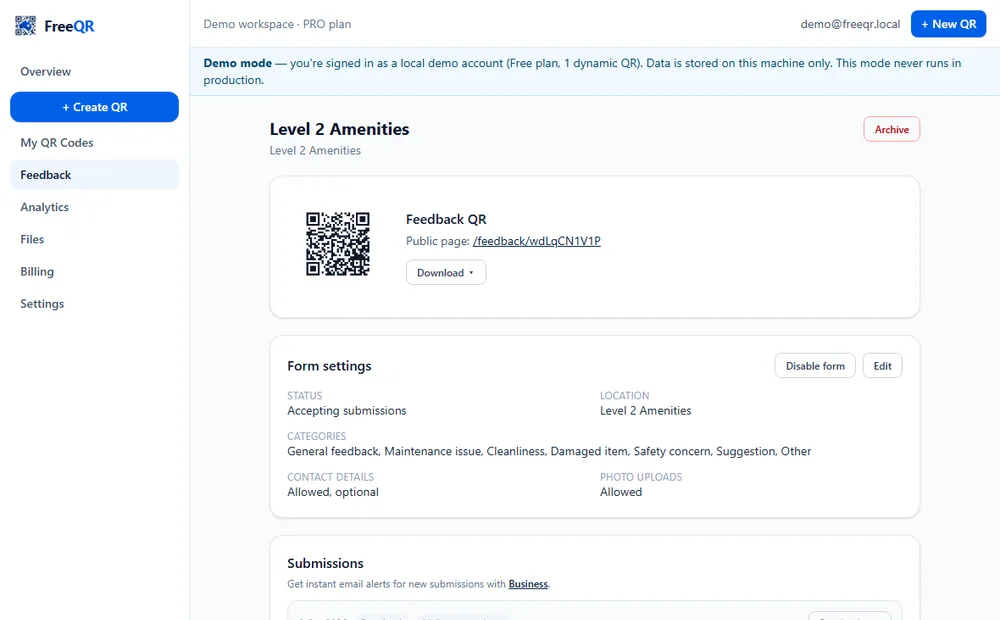
A hand dryer stops working in a gym changing room. A tenant notices a cracked tile in a common area. A guest has a suggestion for the front desk. Most of the time, none of this gets reported — there's no obvious way to, and nobody wants to track down a staff member. QR Feedback & Issue Reporting puts a simple form exactly where the problem is: scan, pick a category, write a sentence, done.
This guide walks through the real flow end to end — creating a form, what the person scanning it actually sees, and working through what comes in — using a fictional demo example (a shared amenities area, “Level 2 Amenities”).
Setting it up, step by step
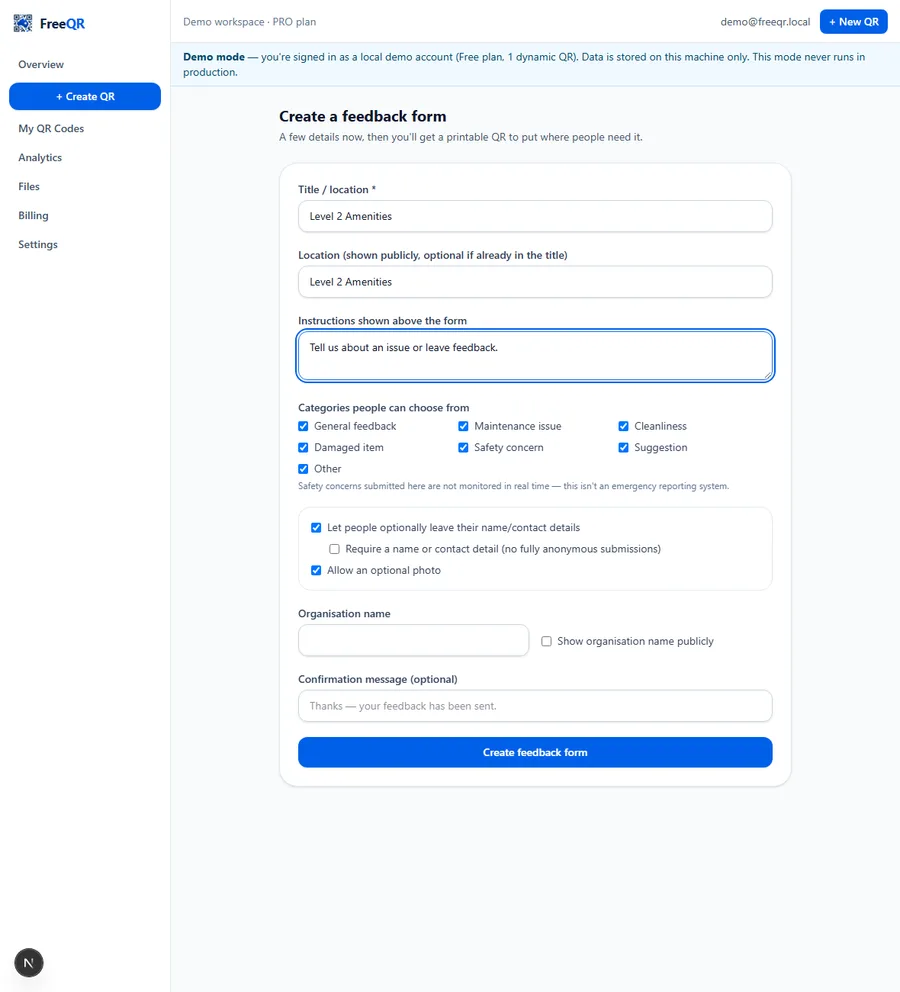
Create the feedback form
From Feedback in your FreeQR dashboard (or Create QR → Business tools), give it a title or location name, pick which categories to offer — general feedback, maintenance issue, cleanliness, damaged item, safety concern, suggestion, other — and decide whether to collect optional contact details and allow a photo. Nothing beyond the title is required.
Get the QR, print it, place it
FreeQR generates the QR immediately. Download it and put it where the problem actually happens — on the wall by the hand dryer, at reception, on the equipment itself — not buried in a binder nobody opens.
What a person sees when they scan
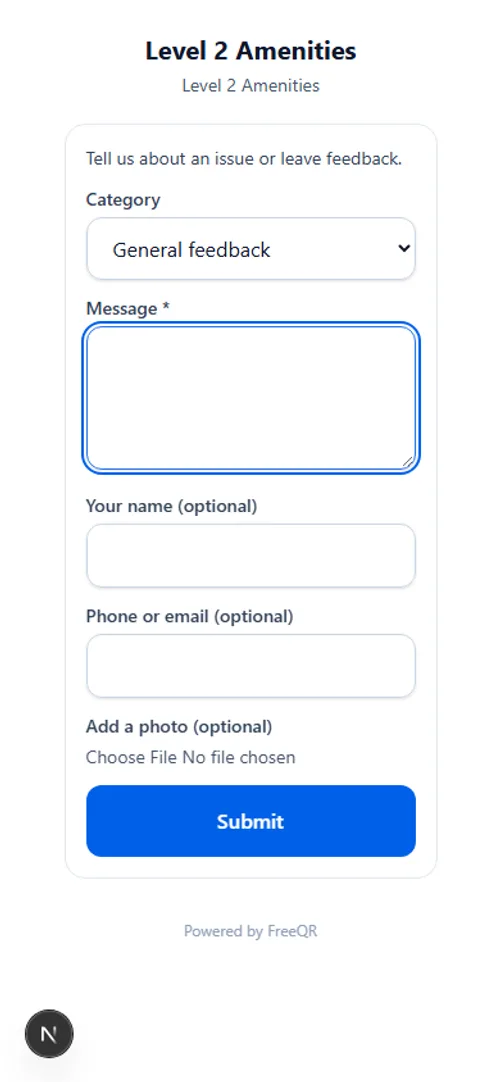
No login, no app — the form opens directly in their phone's browser: the category picker, a message field, optional name/contact fields, and an optional photo upload.
Not an emergency reporting system
After submitting
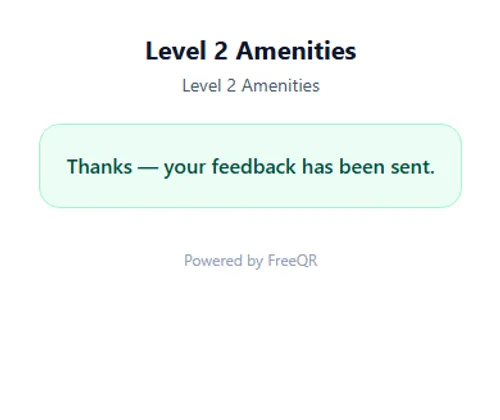
A short confirmation message, and nothing else — no account created, no further steps.
Working through submissions
Every submission lands on the form's dashboard page with a simple New / In progress / Resolved status — no ticketing system to learn, nothing to configure. In this example, the hand-dryer report has already been marked resolved.
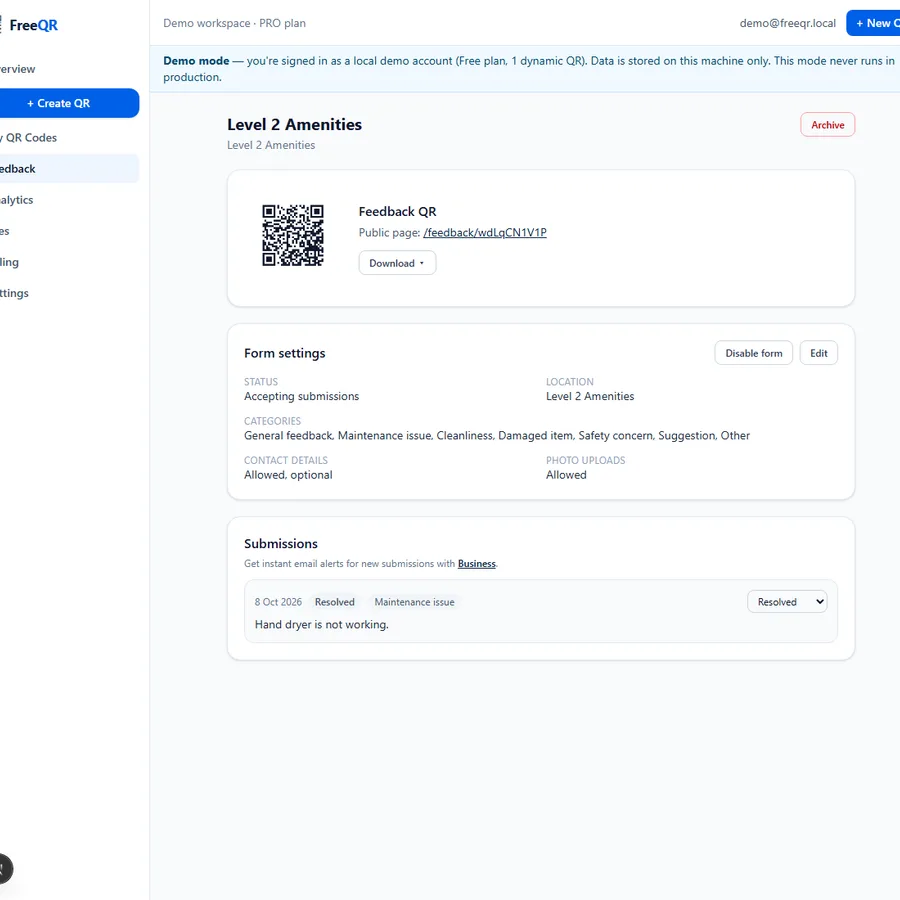
Edit the form anytime — the QR never changes
Rename it, change which categories are offered, rewrite the instructions, turn it off entirely — the printed QR keeps working exactly as before. There is no second QR to print and no sticker to replace, ever, for the life of the form.
Where this is useful
Hotel rooms, apartment and strata common areas, gym and club facilities, offices, event venues, rental properties, warehouses — anywhere someone encounters a problem without an obvious person to tell. It's a standalone form, not tied to a specific piece of equipment — if you want fault reporting attached to a specific machine's own service record instead, see Equipment Passports.
Pricing
QR Feedback & Issue Reporting is included on FreeQR Pro (A$12.99/month) and above. Automated email alerts for new submissions need the Business plan (A$29.99/month) and above — Pro sees every submission in the dashboard instantly, just without the email. See current pricing for the full comparison.
Frequently asked questions
- Do I need an app?
- No — scanning the QR opens the form in the phone's normal browser. There's nothing to install and no account required to submit.
- Can people submit anonymously?
- Yes, by default. You can optionally require a name or contact detail if you'd rather not accept fully anonymous submissions.
- Can I change the form after printing the QR?
- Yes — that's the core of how it works. The printed QR encodes a link, not the form content, so editing the title, categories or instructions updates what people see immediately, on the same sticker.
- Can I receive photos?
- Yes, optionally — JPEG, PNG or WebP, up to 8 MB, using the same upload pipeline as FreeQR's other public-submission forms.
- Is this an emergency reporting system?
- No — it is not an emergency-response system. Submissions aren't monitored in real time. For an urgent or emergency matter, use the appropriate emergency contact channel instead, not this form.