
How to Set Up QR Code Visitor Sign-In
A real walkthrough of setting up FreeQR Visitor Sign-In — creating a location, printing the reception sign, what a visitor actually sees when they scan, and running the live Who's Here register.
Most reception desks run on a clipboard and a pen, or nothing at all. It's rarely clear who's actually in the building right now, visitors wait around for someone to notice them, and if you ever needed to account for everyone during an evacuation, a paper sign-in book wouldn't help much.
FreeQR Visitor Sign-In replaces that with one QR code at reception. A visitor, contractor or delivery scans it with their phone's camera, signs themselves in through a short form in the browser, and you can see exactly who's there in real time — no app, no kiosk hardware, no new platform to learn beyond a dashboard you set up in a few minutes.
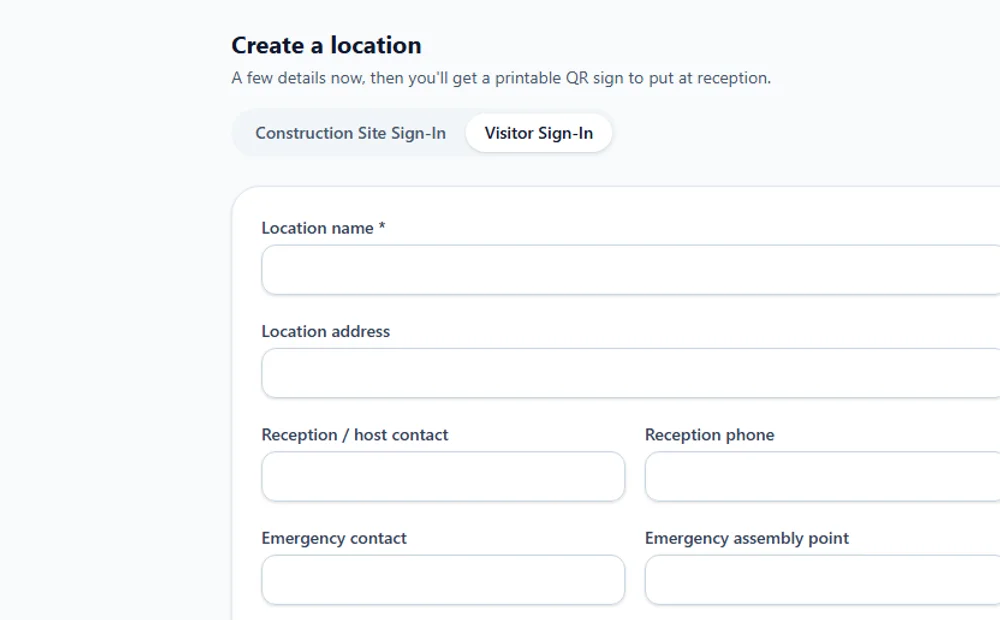
This guide walks through the real setup flow end to end, with a genuine FreeQR screenshot (fictional demo data — no real names, addresses or contact details) of the actual location setup screen.
What is QR visitor sign-in?
You print a QR code and put it at reception. A visitor scans it with their camera — the same motion most people already use for a restaurant menu — chooses who they are (Visitor, Contractor or Delivery), fills in the details your location requires, optionally selects who they're visiting and acknowledges your visitor policy, then signs in. From that moment they show up on a live list of who's currently in the building. Scanning the same QR again signs them out.
Who it's for
Offices and commercial buildings, warehouses and factories, gyms and clubs, stadiums and function venues, body corporate and community facilities, coworking spaces, and any reception desk currently using a paper sign-in book. It uses the same engine as FreeQR Construction Site Sign-In, but with its own visitor-facing language — you'll never see SWMS, pre-starts or trade/licence fields unless you deliberately add them yourself.
Setting it up, step by step
Start a new location
From your FreeQR dashboard, create a new Sign-In location and choose Visitor Sign-In (the same screen also offers Construction Site Sign-In, if that's what you actually need for a site gate instead of a reception desk).
Fill in the location details
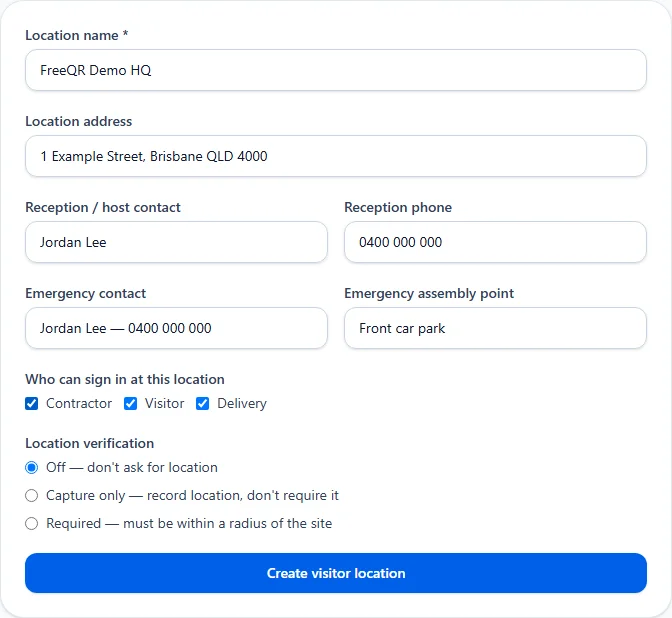
Give the location a name, add its address, a reception/host contact and phone number, and an emergency contact and assembly point. Choose who's allowed to sign in — Contractor, Visitor and/or Delivery — and whether location verification is required. None of this is locked in; you can edit it later from the location dashboard.
Decide on location verification
What location verification actually does
Print the reception sign
Once the location is created, FreeQR generates a printable reception sign with your location name and the QR code itself. Print it and put it where arriving visitors will actually see it — at the front desk, the main entrance, or a meeting-room door.
Test it yourself
Before relying on it, scan the QR with your own phone the way a visitor would. Choose Visitor, fill in the form, and confirm host selection and any policy acknowledgement you've configured appear as expected.
Use the live Who's Here register
Once people start signing in, the location dashboard shows exactly who's currently there, filterable by visitor, contractor or delivery. If someone forgets to sign out, you can manually close out their record — every manual change is logged.
Sign out, and run an emergency roll call if you ever need it
Visitors sign themselves out by scanning the same QR again. One tap starts an emergency roll call — everyone currently signed in is listed as unaccounted for, and you mark each person off as they're found.
Returning visitors don't start from a blank form
A repeat visitor's phone remembers a private, random sign-in token — never a phone number or email lookup — so when they come back, FreeQR recognises the device and offers a fast sign-in with their previous details pre-filled instead of a blank form. There's no public way to search or enumerate who has signed in before; only your location's own dashboard shows that.
Try it on your own account
The setup screenshot above is FreeQR's real Visitor Sign-In UI, filled in with fictional demo data for this article. The fastest way to see the printable reception sign, the sign-in form on a phone and the live Who's Here register for yourself is to run through the same steps on your own account — the whole setup takes a few minutes, and nothing is locked in until you print the sign.
Pricing
Visitor Sign-In is included with FreeQR Pro (A$12.99/month) and above — not priced per location, and not a separate subscription from the rest of FreeQR. See current pricing for the full plan comparison, or read the Sign-In Solutions overview to compare it with Construction Site Sign-In and Equipment Passports.
Frequently asked questions
- Does a visitor need to download an app?
- No. Scanning the QR opens the sign-in form in the phone's normal browser. There's nothing to install and nothing to log into.
- Can contractors and deliveries use the same QR as visitors?
- Yes — the same QR offers Visitor, Contractor and Delivery as separate options (whichever you've enabled for that location), each with its own form fields.
- Can I choose who a visitor is visiting?
- Yes, optionally — host/person-visiting selection is part of the sign-in flow if you've configured it.
- Does a returning visitor have to fill in the whole form again?
- No. A repeat visitor's phone remembers a private, random sign-in token — never a phone number or email lookup — so FreeQR can offer a fast sign-in with their previous details pre-filled. There's no public way to search or enumerate who has signed in before.
- Can I see who is currently in the building?
- Yes — a live, real-time Who's Here register on the location's dashboard, filterable by visitor, contractor or delivery.
- Is there an emergency roll call?
- Yes — one tap starts a roll call listing everyone currently signed in as unaccounted for, and you mark each person off as they're found.
- Which plan do I need?
- Visitor Sign-In is included on FreeQR Pro (A$12.99/month) and above — not a separate subscription.
- What's the difference between Visitor Sign-In and Construction Site Sign-In?
- They're the same underlying FreeQR product with different terminology and defaults. Visitor Sign-In speaks the language of offices and reception desks (Visitor/Contractor/Delivery, host selection); Construction Site Sign-In adds site-specific concepts like SWMS acknowledgement, pre-starts and worker credentials. You choose which one when you create a location.