
How to Create a Wi-Fi QR Code for Guests
How Wi-Fi QR codes actually work, how to make one with FreeQR in a couple of minutes, and where they're genuinely useful — Airbnbs, cafes, offices and venues included.
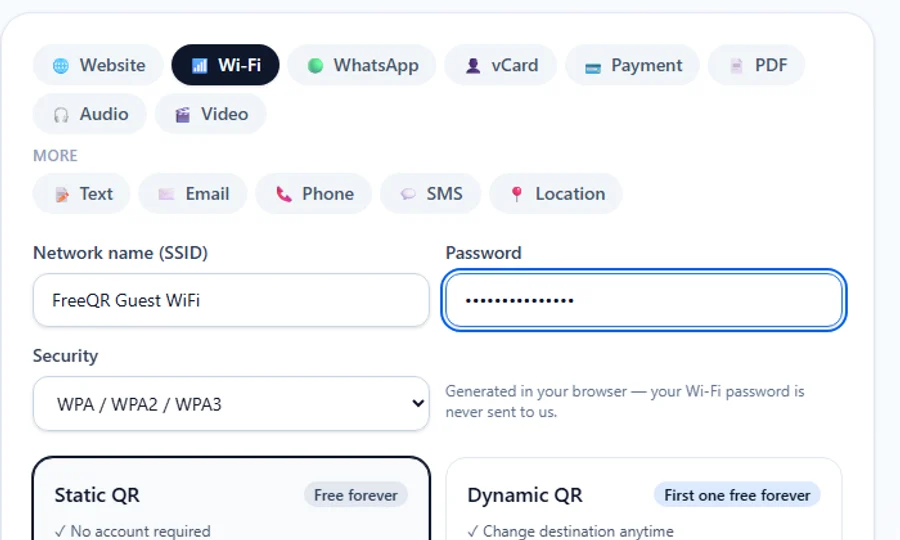
Spelling out a Wi-Fi password to a guest, one character at a time, is a small thing that happens constantly — at the front desk of a café, on the welcome card of a holiday rental, in a meeting room where nobody can remember if the F is capital. A Wi-Fi QR code fixes this specific, minor annoyance: someone scans it with their phone's camera, and their phone offers to join the network. No typing, no spelling, no asking twice.
What a Wi-Fi QR code actually is
It's a QR code that encodes your network name, security type and password in a standard format that iPhones and Android phones both understand natively. Scanning it doesn't open a website or run an app — the phone reads the network details directly out of the code and offers a “Join” button. It's the same QR code technology used for a menu or a link, just carrying different information.
Creating one with FreeQR
No account is required for this — it's a static QR code, generated entirely in your browser.
Open the QR generator and select Wi-Fi
From the FreeQR homepage or the QR code generator, choose Wi-Fi from the list of types.
Enter your network name and password
Type in your network name (SSID) exactly as it appears on your router, then your password — the form shown at the top of this guide. Choose the security type — WPA/WPA2/WPA3 covers almost every modern router, with WEP and open (no password) networks also supported.
Check the preview, then download
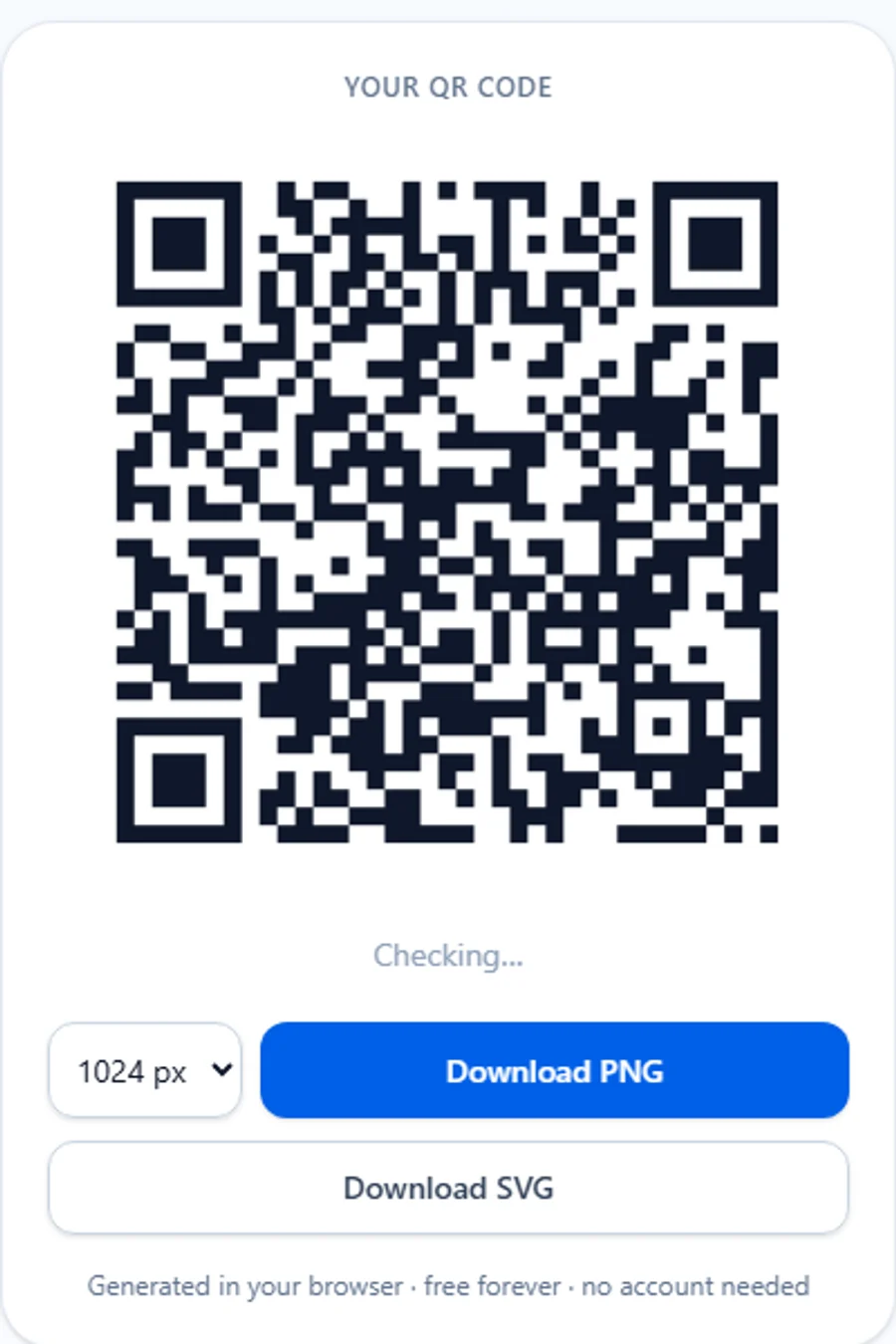
The QR code updates as you type. Once it looks right, download it as a PNG for a quick print, or SVG if you're putting it into a flyer, sign or welcome card design — SVG is a vector format, so it stays sharp no matter how large you print it.
Test it before you print a stack of them
Scan the screen with your own phone first. Confirm it offers to join the right network, and that the password is correct — a typo here means reprinting rather than just fixing a database field, since this is a static code.
Keeping your network secure
A Wi-Fi QR code is exactly as sensitive as the password it contains. The code itself doesn't display the password in readable text, but anyone who scans it can join your network — functionally the same as handing them the password directly. For most home use that's a non-issue. For a business, it's worth a moment's thought.
Worth considering: a separate guest network
Because the password is baked into the code at the moment you create it, changing your Wi-Fi password later means the old printed code stops working. FreeQR's Wi-Fi QR codes are static — there's no dynamic version that updates itself when your password changes. Generating and printing a new one takes under a minute, so this is a minor inconvenience rather than a real limitation, but it's worth knowing before you order a hundred laminated cards.
Where it's actually useful
Airbnbs and holiday rentals. Put the code somewhere a guest will naturally look — near the entry instructions, in the guest book, next to the TV, or on a small welcome card. It saves the back-and-forth message asking for the password on the first night, and saves you printing the password itself in large text somewhere a passerby could read it.
Cafés and restaurants. A code on the counter or table tents means staff stop getting asked for the Wi-Fi password during a lunch rush.
Offices. A guest network code in reception or a meeting room is faster for visiting clients and contractors than reading a password off a whiteboard.
Venues and events. A temporary guest network for a conference, market stall or function means attendees connect in seconds instead of forming a queue at the help desk.
Home. For friends and family who visit often enough that re-explaining the password each time gets old, a code stuck inside a cupboard door does the job quietly.
Keep in mind
- Print it at a reasonable size — a few centimetres wide is enough for a normal phone camera to read it comfortably
- Keep decent contrast between the code and its background, and don't crop into the white border around it
- If you add a logo or custom colours, check the scan test again afterward — FreeQR adjusts error correction automatically, but it's still worth a final check with your own phone
That's genuinely the whole process. If you'd like to try it, create a Wi-Fi QR code — it's free, with no account required for a static code.
Frequently asked questions
- Do Wi-Fi QR codes work on iPhone?
- Yes. Modern iPhones scan a Wi-Fi QR code directly from the Camera app and offer to join the network — no extra app needed.
- Do Wi-Fi QR codes work on Android?
- Yes, on virtually all current Android phones, the same way — open the camera, point it at the code, and tap the join-network prompt.
- Does the QR code reveal the password to anyone who looks at it?
- Not by looking at the printed code — it's encoded, not written out. But anyone who scans it can join the network, the same as if you'd told them the password out loud. Treat it accordingly.
- Can I print a Wi-Fi QR code?
- Yes. Download it as a PNG for a quick print, or SVG if you're sending it to a printer or putting it into a design file — SVG stays sharp at any size.
- What happens if I change my Wi-Fi password?
- FreeQR's Wi-Fi QR codes are static — the password is encoded directly into the code when you create it. If you change your password, the old code stops working, so you'd generate and print a new one. It takes under a minute and is free every time.
- Should an Airbnb or holiday rental use a guest network?
- It's worth considering. A separate guest network means you can share access freely via a printed QR code without handing out the same credentials used by your own devices or any smart-home equipment.
- Can I customise how the QR code looks?
- Yes. FreeQR lets you change colours and style, and add a logo — the generator automatically raises the error-correction level and checks the code still scans before you download it.